
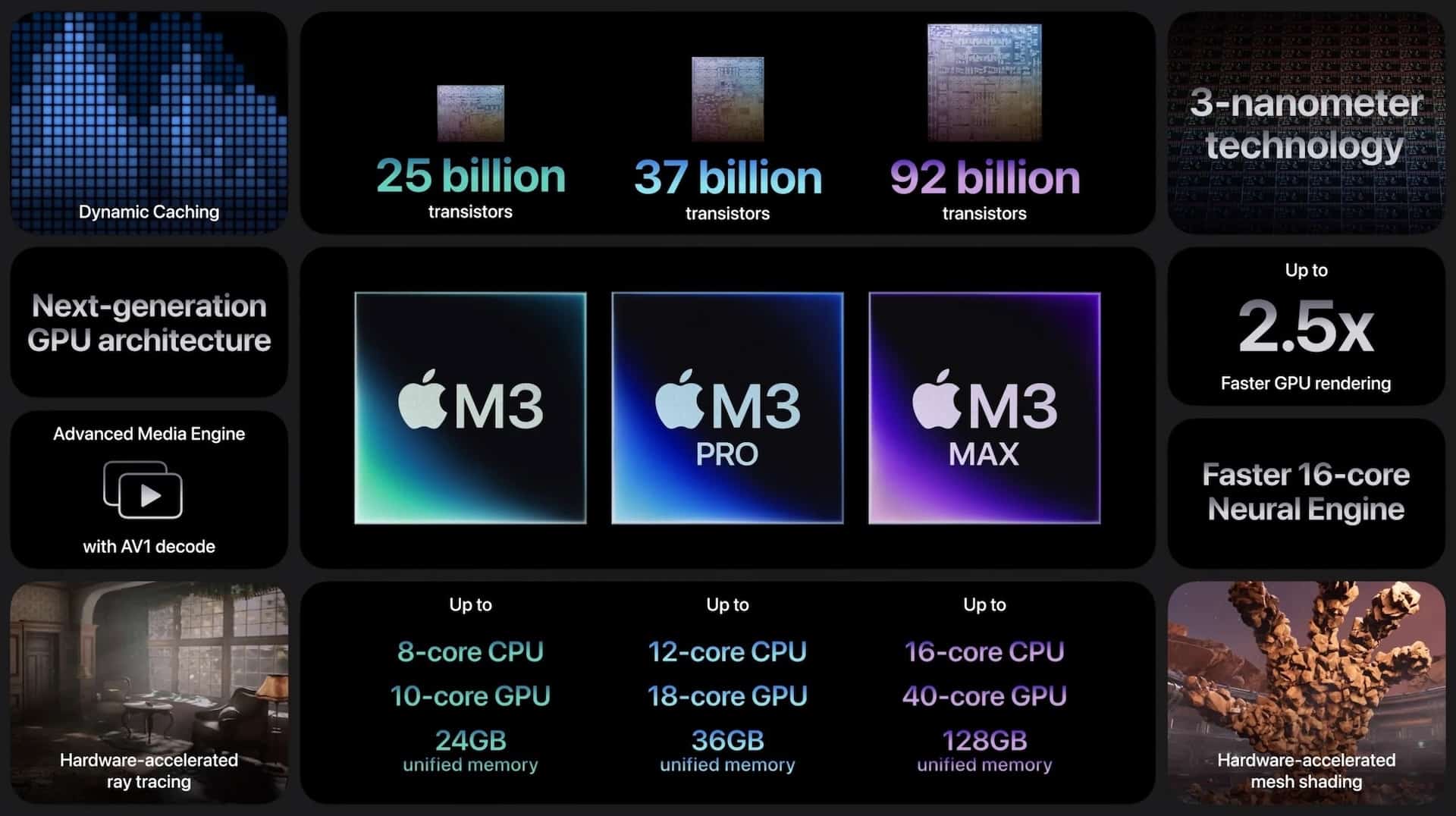
Apple’s transition from Intel processors to its custom Apple Silicon chips—starting with the M1, followed by M2, M3, and now M4— radically changed how software runs on macOS. The move delivered incredible performance and efficiency, but it also created challenges for users who rely on applications originally built for x86 Intel architecture, including certain Windows apps, Linux tools, and specialized client programs.
One of the most common questions today is:
“What is the best emulator for Apple Silicon chip to run Firestorm?”
If you’re referring to the Firestorm Second Life viewer, or any Firestorm-based 3D client that was originally designed for non-ARM platforms, then understanding the compatibility, limitations, and available emulation solutions is crucial.
This detailed guide explores the top emulator options, how well they perform on Apple Silicon, and what you need to know before running Firestorm on your M-series Mac.
What Is Firestorm?
Firestorm is a popular, open-source viewer for Second Life and OpenSim platforms. It is used for:
-
Visiting virtual worlds
-
Creating regions
-
Social interaction
-
Avatar customization
-
Roleplay, education, events, and more
Firestorm has versions for Windows, macOS, and Linux, but not all builds are optimized for ARM-based systems such as Apple Silicon. While there is a native macOS version, some users prefer or require running the Windows version due to plugins, add-ons, or work-specific features.
This is why many Mac users search for an emulator or virtualization software that can run the Windows edition of Firestorm on Apple Silicon.
Does Firestorm Run Natively on Apple Silicon?
Firestorm does offer a macOS version, and newer official releases have improved compatibility with Apple Silicon. However:
- Native ARM support is still evolving
- Some users experience lower performance compared to Windows versions
- Certain advanced features may work better on Windows
Therefore, people look for a solution that can run Windows Firestorm on M-series Macs by emulating or virtualizing the Intel environment.
Emulation vs. Virtualization: Which Do You Need?
Before choosing a method, it’s important to understand the difference:
1. Emulation
-
Translates x86 instructions to ARM
-
Heavy on performance
-
Allows running full Intel Windows
-
Example: UTM with QEMU backend
2. Virtualization
-
Runs ARM versions of operating systems at near-native performance
-
Cannot run x86 applications directly without additional compatibility layers
-
Example: Parallels Desktop running Windows 11 ARM
Most Apple Silicon users prefer virtualization because it is faster and smoother. However, if your goal is specifically to run x86 Windows Firestorm, you may require an emulator.
Best Emulator and Virtualization Tools to Run Firestorm on Apple Silicon (2025)
Below are the top options, along with performance notes and compatibility.
1. Parallels Desktop (Best Overall Choice)
If your primary goal is to run Firestorm for Windows on an M1, M2, M3, or M4 chip, Parallels Desktop offers the best balance of speed and stability.
Why Parallels Works Best
-
Supports Windows 11 ARM, which can run many x86 apps through built-in emulation
-
Easy setup with automatic Windows installation
-
Full 3D acceleration for apps like Firestorm
-
Smooth performance even with large scenes and complex avatars
Firestorm Performance on Parallels
-
Firestorm Windows version runs well under Windows ARM
-
FPS is often higher than the native macOS version
-
Lower crash rates reported for some users
-
Best for creators, roleplayers, and long-time Windows users
Downsides
-
Not free
-
Requires Windows 11 ARM license
-
Some x86-only plugins might not work
2. UTM (Best Free Emulator Based on QEMU)
UTM is a user-friendly virtualization app built on the powerful QEMU emulation framework. It’s free and open-source.
Highlights
-
Can emulate x86 Windows, though with slow performance
-
Can virtualize Windows ARM with much better speed
-
Supports 3D acceleration (limited)
-
Works on macOS 12+ and all Apple Silicon chips
Firestorm Performance on UTM
-
Running Windows ARM: Moderate performance
-
Running emulated x86 Windows: Very slow
-
Not ideal for high-graphics requirements of Firestorm
Best For
-
Casual testing
-
Lightweight tasks
-
Users who prefer free tools
3. CrossOver (Wine-Based Compatibility Layer)
CrossOver is not a traditional emulator or virtual machine. Instead, it uses the Wine compatibility layer to run Windows apps on macOS without installing Windows.
Benefits
-
Much lighter than virtualization
-
Can run many Windows games and programs at high speed
-
Apple Silicon compatibility is improving rapidly
Firestorm in CrossOver
Unfortunately, Firestorm is inconsistent or unstable under CrossOver due to:
-
Heavy reliance on specific DirectX features
-
Multi-threaded rendering
-
Graphics pipeline limitations
4. VMware Fusion for Apple Silicon
VMware Fusion now supports Apple Silicon, but it still trails behind Parallels in terms of:
-
Graphics acceleration
-
3D rendering
-
Windows ARM support
Firestorm Performance
-
Works only with Windows ARM
-
3D support limited
-
Lower FPS compared to Parallels
Use VMware Fusion only if:
-
You already have a VMware workflow
-
You prefer free/tech preview builds
-
You don’t need high graphics quality
Which Emulator Is Best for Running Firestorm?
Best Overall:
Parallels Desktop + Windows 11 ARM
Fastest, smoothest, and most reliable experience for Windows Firestorm.
Best Free Option:
UTM running Windows ARM
Works well for basic use but graphics-intensive scenes will lag.
For Native macOS Users:
Use Firestorm for macOS directly
No emulator required, and native ARM builds are improving.
How to Install Firestorm on Apple Silicon Using Parallels
Here is a streamlined guide:
Step 1: Install Parallels Desktop
Download and install Parallels Desktop for Mac.
Step 2: Install Windows 11 ARM
Parallels includes an automated installer that downloads Windows ARM with one click.
Step 3: Optimize Windows for 3D
Inside Parallels:
-
Allocate 8–12 GB RAM
-
Give 4 CPU cores
-
Enable 3D acceleration
-
Set graphics to “High” or “Auto”
Step 4: Download Firestorm for Windows
Install the latest release of the Firestorm Second Life viewer for Windows.
Step 5: Log in and adjust graphics
Start with:
-
Mid graphics preset
-
Turn on ALM
-
Lower draw distance to 80–120 until stable
Performance typically improves after a few minutes of caching.
Tips for Best Firestorm Performance on Apple Silicon
Whether using native macOS or Windows through an emulator, these tips help improve FPS:
- Use Ethernet or 5GHz WiFi
- Reduce draw distance in crowded regions
- Turn off shadows when exploring heavy builds
- Use the “Mid” preset and tweak upward
- Close other background apps
- Keep Firestorm updated (new ARM improvements incoming)
Conclusion
Running Firestorm on Apple Silicon is absolutely possible, and performance is surprisingly strong thanks to the powerful M-series chips. While Firestorm does have a native macOS version, many users prefer the Windows version for compatibility reasons—which is why choosing the right emulator or virtualization tool is essential.
If you’re looking for the “best emulator for Apple Silicon chip to run Firestorm,” the clear winner is Parallels Desktop.
It offers the strongest performance, best compatibility, and the smoothest user experience when running Windows Firestorm on M1, M2, M3, and M4 Macs.
For those who want a free option, UTM works but may not deliver the performance needed for heavy 3D scenes.
As Apple Silicon matures and Firestorm’s own ARM support improves, the experience will only get better. But for now, Parallels remains the fastest and most reliable solution.